Here’s the real case, scenario by scenario.
The non-negotiable reasons
1. Windows 10 hit end of support on October 14, 2025
This one isn’t opinion. Microsoft officially ended support for Windows 10 — including Windows 10 IoT Enterprise, which is what most older MTRs run on — on October 14, 2025. After that date:
- No more security patches or feature updates
- Teams Rooms Pro Management stopped testing and supporting Windows 10 devices
- The Teams Rooms app itself is no longer updated or validated on Win10
- Devices that can’t upgrade to Windows 11 need to be replaced outright
If your MTR is still on Windows 10 today, you’re running an unpatched, unsupported collaboration endpoint on your corporate network. That’s a security risk, a compliance risk, and a feature-parity problem all at once.
2. Windows 11 has hard hardware requirements
Even if the Teams Rooms app supports your box, Windows 11 itself is strict:
- 64-bit CPU on Microsoft’s approved list (generally 8th-gen Intel Core or newer)
- TPM 2.0 required — the hardware security chip that stores BitLocker keys and binds the device identity to the physical hardware
- UEFI with Secure Boot required — modern firmware that cryptographically verifies the boot chain so nothing untrusted can load before Windows
- 4 GB RAM minimum, 64 GB storage minimum
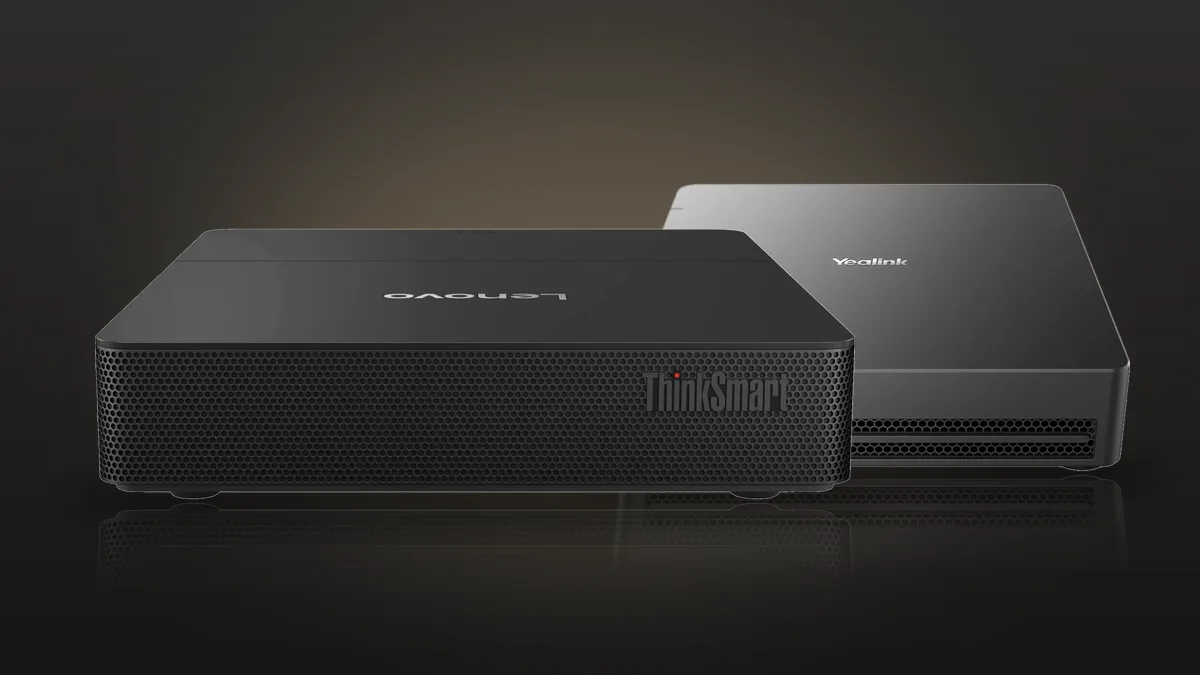
A lot of first-generation MTR NUCs — 6th or 7th gen Core i5s from the original Logi, Lenovo, HP, and Crestron bundles — simply don’t qualify. No TPM 2.0, no Secure Boot firmware, CPU not on the supported list. Microsoft has been explicit they won’t relax these bars. If the compute fails the Windows 11 readiness check, it’s replacement territory.
3. Surface Hub v1 and v2 (on Win10 Team) are done
Surface Hub 2S devices running Windows 10 Team Edition lost support on the same October 14, 2025 date. After that, they can no longer join Teams meetings and stop getting security updates. Surface Hub v1 was already EOL before that. If you’re running either, the internal compute has to change — usually by putting the Hub in Replacement PC mode and adding a modern MTR compute behind it.
The performance reasons
4. Multi-camera setups have specific compute requirements
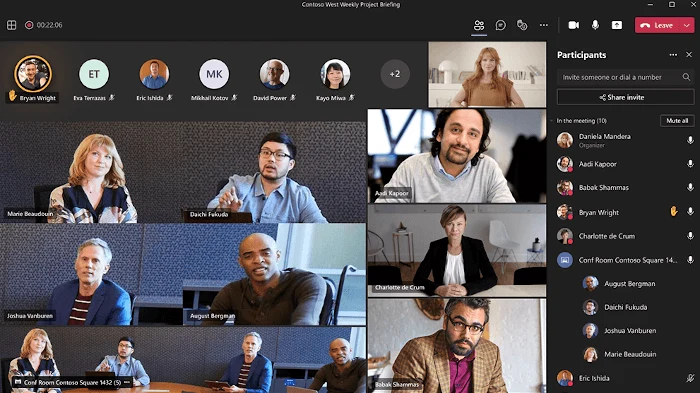
Quick clarification, because there’s some confusion in the field: when Microsoft says “multi-camera” in the Teams Rooms world, they mean the official Multiple camera view feature on MTR Windows — up to four single-stream cameras connected to the compute over USB, with the remote participants able to switch between feeds or see them all at once.
At the compute level, MTR only knows about USB. So even network cameras have to be presented to it as USB devices.
USB cameras direct to the compute
This is the standard setup. Microsoft’s rules:
- Each camera must support the MJPEG video format
- Each camera should be plugged into a dedicated USB port on the compute. If you must use a USB hub, only one camera per hub — USB bandwidth is the bottleneck
- The compute also needs USB ports left over for the touch console, audio device, etc.
It works, but it has real limits: USB cable length (5m without an active extender), USB port count, and the bandwidth ceiling of a single host controller. Fine for small-to-medium rooms, painful for large training rooms or boardrooms.
Q-SYS NC network cameras (and similar)
Network PTZ cameras like the Q-SYS NC-12x80 or NC-20x60 don’t plug into the MTR over USB — they live on the Q-SYS network and run over standard Cat6 with PoE+. To get those streams into the MTR, you need a USB Video Bridge in the Q-SYS ecosystem (Core Nano, Core 8 Flex, Core 24f, NV-21-HU, NV-32-H, or the dedicated I/O-USB Bridge). The bridge takes the Q-SYS Mediacast streams from the network cameras and emulates standard USB webcams to the MTR compute. As far as Windows and the Teams Rooms app are concerned, those are just USB cameras with the same drivers and the same multi-camera toggle.
Which means:
- MTR compute requirements stay the same — same i5/9th-gen/12th-gen minimums, because MTR is still encoding/decoding the same number of streams
- You sidestep USB length, port count, and bandwidth issues — cameras can sit anywhere there’s a network drop
- You can scale beyond 4 cameras at the network level (Q-SYS routing) even if MTR itself only consumes up to 4 simultaneously
- Centralized control and monitoring through Q-SYS Designer and Q-SYS Reflect, plus the option to add intelligent audio-based automatic camera switching, presenter tracking, and Q-SYS VisionSuite
The trade-off is cost and complexity — you’re adding a Q-SYS Core, the cameras themselves, and the programming/license overhead. For a single small room it’s overkill. For multi-room deployments, large rooms, or anything needing camera switching beyond what MTR does natively, it’s the right move.
Compute minimums (same for both approaches)
| Configuration | Minimum compute |
|---|---|
| Single camera | Intel Core i5 or above |
| 2–3 cameras | Minimum Intel 9th gen Core i5 |
| 4 cameras | Minimum Intel 12th gen Core i5 |
Run an older compute with multiple cameras — USB direct or via Q-SYS bridge — and you’ll see video freezes, dropped streams, or cameras that just don’t show up in the Teams app. The compute has to keep up either way.
Feature → hardware → license matrix
Quick reference for what each major Teams Rooms feature actually needs. Almost every advanced feature requires Teams Rooms Pro ($40/room/month) plus modern hardware — so an old compute paired with a Pro license is paying for capability you can’t fully deliver.
| Feature | Compute requirement | Camera / peripheral requirement | License |
|---|---|---|---|
| One-touch join, content sharing, whiteboarding | Any certified MTR compute | Any certified peripheral | Basic (free, max 25 rooms) |
| Front Row, large gallery, dual-screen, chat bubbles | Compatible certified compute | Dual displays for dual-screen | Pro |
| Cloud IntelliFrame | Modern compute on Windows 11 | Compatible camera (cloud AI does the framing) | Pro |
| Multi-Stream IntelliFrame | Modern compute on Windows 11 | AI-capable intelligent camera with edge AI (Logitech Rally Bar, Neat Bar, Poly Studio E70, Q-SYS VisionSuite, etc.) | Pro |
| People Recognition | Modern compute on Windows 11 | Intelligent camera + enrollment policy enabled | Pro |
| Multiple camera view (2–3 cameras) | Intel 9th gen Core i5 or above | 2–3 MJPEG USB cameras direct to compute (or Q-SYS NC cameras via USB Video Bridge) | Pro |
| Multiple camera view (4 cameras) | Intel 12th gen Core i5 or above | 4 MJPEG USB cameras + enough dedicated USB ports (or Q-SYS bridge equivalent) | Pro |
| Direct guest join (Zoom, Webex, Google Meet) | Compatible certified compute | Standard MTR peripherals | Pro |
| Conditional access, device analytics, Pro Management portal, CPU health signals | Modern compute with TPM 2.0 + Secure Boot | n/a | Pro |
| Q-SYS Control surface on Logitech Tap / TSC, full AV+control integration | Modern certified compute | Q-SYS Core + Q-SYS Control for MTR application | Pro (MTR) + Q-SYS Control license |
The pattern is hard to miss: almost everything beyond the no-frills basics requires Pro and modern silicon. If either side falls short, you’re underusing the other.
5. AI features are pushing hardware harder
Cloud IntelliFrame, Multi-Stream IntelliFrame, people recognition, intelligent camera framing, and live speaker ID all add compute and streaming overhead on top of the basic meeting workload. Older MTRs technically run these features but often thermal-throttle or stutter under sustained use — and new AI features are being added at a pace older silicon can’t keep up with.
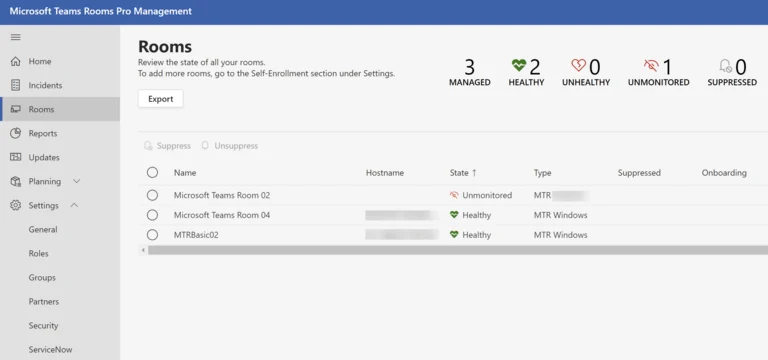
6. The “CPU performance limited” signal
If you’re on Teams Rooms Pro Management, there’s a specific health signal called CPU performance limited that flags devices where the processor is hitting its ceiling during meetings. This is Microsoft’s own telemetry saying “this box is maxed out.” When a room starts throwing this signal consistently, you’ve already crossed the line — users are feeling it in slow joins, audio glitches, video drops, and laggy content sharing.
7. Symptoms you can actually see
You don’t need a dashboard to tell when a compute is on its way out. Real-world signs from the field:
- Slow boot and long wake-from-sleep times
- Spinning loading icons on the console between screens
- Content sharing dropping to ridiculous frame rates (there’s a known case of MTRs capping at 4 fps under load)
- Random audio dropouts mid-call
- “Sync failed” / “Couldn’t authenticate” errors that only reboot fixes
- Fans running flat-out during any meeting with more than 3 remote participants
- The room freezing overnight and needing a manual reboot every morning
Any one of these in isolation can be a software issue. Two or more, consistently, on a 4+ year old box? That’s the compute telling you it’s done.
The strategic reasons
8. The 3-to-5-year refresh cycle is now the norm
Traditional AV gear — displays, amplifiers, speakers — can easily go 7+ years. But once you add compute, fans, SSDs, and dedicated video processing, the realistic window drops to 3 to 5 years before you hit performance, compatibility, or support issues. Microsoft’s OS cadence, certification churn, and AI feature roadmap are all compressing that window further. Planning for a 5-year compute refresh isn’t aggressive — it’s realistic.
9. Teams Rooms Pro licensing is worth more on modern hardware
Teams Rooms Pro runs $40/room/month. That license unlocks intelligent audio/video, IntelliFrame, front row, large gallery, dual-screen support, device analytics, conditional access, and proactive Pro Management monitoring. A good chunk of those Pro features assume modern silicon. If you’re paying for Pro on an 8th-gen box that can’t fully deliver the experience, you’re subsidizing licensing you can’t fully use.
10. Moving to Android might solve the problem differently
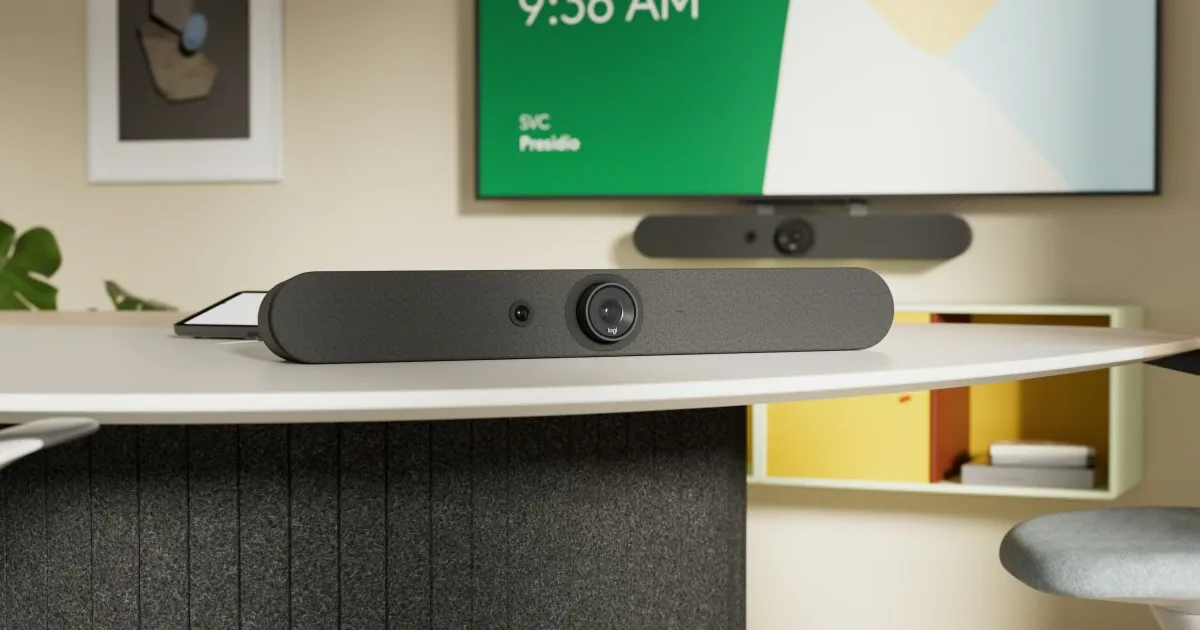
Not every room needs a Windows compute. Android-based Teams Rooms (Rally Bar, Neat Bar, Poly Studio X, Yealink MeetingBar) put the compute inside the video bar itself — no separate PC, simpler cabling, lower deployment cost, and much less to manage. The trade-off: Windows still gets new features first, and complex rooms (multi-camera, dual-display, specialty DSP integration) still play better on Windows. For small and medium rooms, replacing the old Windows compute with an Android bar is often the cleaner long-term move.
11. Security and compliance posture
An unpatched MTR is a network-connected Windows endpoint with persistent Azure AD credentials sitting in a common room. For regulated industries — healthcare, finance, legal, government — keeping it on an unsupported OS isn’t just bad practice, it’s a straight-up audit finding. Modern computes with TPM 2.0, Secure Boot, BitLocker, and conditional access support are the baseline most compliance frameworks now assume.
12. The cost of doing nothing
This is the one most people underestimate. A “working” old MTR costs the business every time:
- A 10-minute meeting start delay × 4 meetings/day × 20 working days = 13 hours/month of wasted executive time per room
- Support tickets for “the room isn’t working” eating IT hours
- Reputational cost when a client-facing meeting glitches
- The real risk of a dead box on the day of a major meeting
Forrester’s TEI study on Teams Rooms pegged the value of preventing these disruptions at hundreds of thousands of dollars over three years for a mid-sized org. A $2–3K compute refresh pays for itself fast when you account for the hidden operational cost of a limping room.
When you shouldn’t rush to replace
This isn’t a sales pitch — there are legitimate reasons to hold off.
The box is 8th-gen or newer and passes Windows 11 readiness
If your compute qualifies for Windows 11, has TPM 2.0, is still on the MTR certified list, and isn’t throwing CPU-limited signals — just upgrade the OS. A clean Win11 reimage can extend the useful life by another 2–3 years and costs you a technician’s time, not new hardware.
You’re already on a planned refresh cycle that’s close
If your organization’s AV refresh is scheduled for 6–12 months out, and the room is functional (not unsupported), it usually makes more sense to bundle the compute replacement with the scheduled display/camera refresh than to do it piecemeal.
The room is low-use or on the chopping block
A phone booth or a rarely-used huddle room that’s slated to be repurposed, decommissioned, or converted to BYOD doesn’t need a $2K compute upgrade. Downgrade it to a BYOD setup with a Logitech Swytch or similar and be done with it.
You’re re-evaluating the whole UC platform
If the organization is actively considering Zoom, Webex, Google Meet, or a mixed strategy, dropping $2–3K per room on new MTR hardware right before a platform decision is wasted spend. Wait for the decision, then right-size the hardware to match.
Budget genuinely isn’t there — but know the risk
If a replacement simply isn’t in this fiscal year’s budget and the box still boots, document the risk (unsupported OS, no security patches, no feature updates), segment it on the network if possible, and get it on next year’s capital plan. Don’t pretend the risk doesn’t exist — manage it.
The decision framework
Here’s the simple version I walk clients through — or skip the reading and use the interactive version: the MTR Compute Checker asks these questions and gives you the verdict.
- Is the compute currently on Windows 10? → Upgrade path or replace. No third option.
- Does it pass the Windows 11 readiness check? → If yes, reimage. If no, replace.
- Is it throwing CPU-limited or other hardware-related health signals in Pro Management? → Replace.
- Is it older than 5 years or showing the performance symptoms above? → Replace.
- Does the room need multi-camera, IntelliFrame, or other AI features? → Confirm the compute meets the published minimums. If not, replace.
- Is the room a good candidate for Android or BYOD instead? → Consider a platform swap rather than a like-for-like replacement.
Bottom line
The MTR compute is the single most important — and most overlooked — piece of the meeting room. A great camera, a great mic, a great display, all bottlenecked by a tired little PC in the cabinet: that’s what most mid-life MTRs actually look like in 2026.
If your compute is on Windows 10, it’s already unsupported — handle it now. If it’s on old silicon that can’t run Windows 11 or keep up with multi-camera and AI features, you’re paying for licensing and peripherals you can’t fully use. And if it’s just quietly slow and glitchy, your users are already noticing — even if they’re not opening tickets about it.
Replacing the compute is almost always cheaper than replacing the productivity you’re losing to a flaky room.
Not sure where your rooms land?
Start with the MTR Compute Checker — it runs one room through this exact framework in about 2 minutes. And if you’re staring at a whole fleet of aging Teams Rooms, trying to figure out which ones to reimage, which to replace, and which to swap for an Android bar, that’s exactly the kind of assessment I do. Get a free room assessment and we’ll walk through your room inventory, your licensing, and a right-sized refresh plan — no vendor quota behind it.