Not sure which bar fits your room? Tell me your room size and platform, and I’ll send you the 2–3 bars I’d shortlist, with why. Free, independent, no sales pitch.
Why choosing a video bar got hard
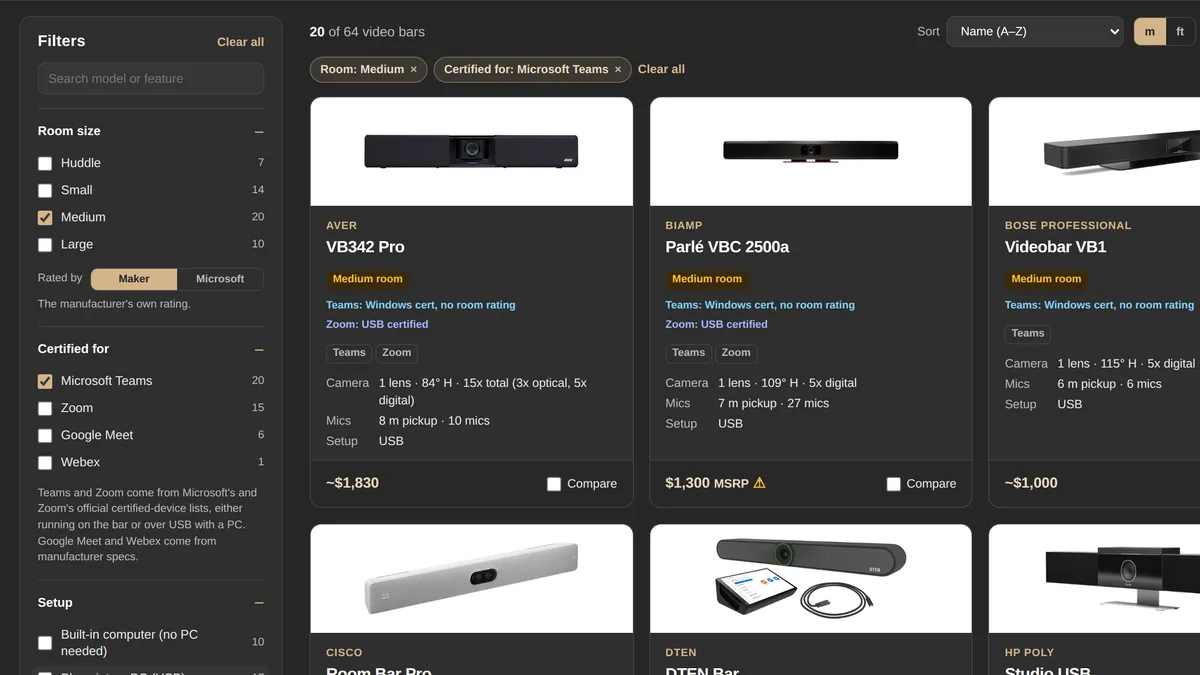
The Video Bar Comparison currently covers 65 bars from 22 manufacturers: Logitech, HP Poly, Yealink, Neat, Cisco, Jabra, AVer, Lenovo, Sennheiser, Bose, Biamp, Crestron, MAXHUB, Barco, Shure, Q-SYS and more. Lay their datasheets next to each other and three problems show up straight away:
- Field of view is quoted differently. Some brands give horizontal field of view, some give diagonal, some give both. For the same lens the diagonal figure is always larger, so a “120°” bar isn’t necessarily wider than a “113°” one.
- Room size is self-rated. “Medium room” means whatever the manufacturer wants it to mean, and nobody rates their own product conservatively.
- “Works with Teams and Zoom” isn’t the same as certified. Almost any USB bar will show up as a camera and speakerphone in a Teams or Zoom call. Being on Microsoft’s or Zoom’s certified list is a different, and much more useful, statement.
The tool normalises all of that into one table and one set of filters. But before you start clicking, here’s the order I’d actually think about it in.
What actually matters, in order
1. Your platform, and whether the bar is actually certified for it
Start with the meeting platform you’ll use in that room, because it rules out more bars than anything else. Of the 65 bars in the tool, 52 are certified for Microsoft Teams and 36 for Zoom, but only 33 for both. Nineteen are Teams-only (including the Bose, MAXHUB, Shure and Owl Labs bars), and three are Zoom-only: the Insta360 Connect, AVer VB370A and Jabra PanaCast U30.
Certification also isn’t permanent. Two examples from this month:
- The Crestron Videobar 70’s Zoom Rooms certification ended in September 2026 and Zoom lists it as not being recertified. It’s still a Teams Rooms device.
- The Logitech Rally Bar Huddle’s Teams Rooms on Android certification passed its end date on September 3, 2026, with renewal listed as pending.
That’s why the Teams and Zoom tags in the tool come straight from Microsoft’s and Zoom’s certified-device lists rather than from marketing copy, and why lapsed or pending certifications are flagged.
2. Room depth, not seat count
The number of chairs is the least useful number in a room. What limits a video bar is how far it has to hear and see. Built-in microphone pickup in the tool ranges from 3 m to 10 m, and a bar rated for 4.5 m will struggle with the far end of a 7 m table even if the seat count looks fine.
Microsoft is one of the few parties that rates bars against fixed room sizes. For Teams Rooms on Android devices, it certifies each one for a specific room class:
| Microsoft room class | Room size |
|---|---|
| Focus | 2.4 × 2.4 m |
| Huddle | 3 × 3 m |
| Small | 4.5 × 4.5 m |
| Medium | 4.5 × 6 m |
| Large | 4.5 × 8.5 m |
Compare that with the manufacturers’ own labels and the gap is obvious. Eleven bars in the tool are sold as large-room bars, but only four are certified by Microsoft for large rooms: the Crestron Videobar 70, Poly Studio X72, Shure IntelliMix Bar Pro and Yealink MeetingBar A50. The Neat Bar Pro and MAXHUB XBar V70 are marketed for large rooms and certified by Microsoft for medium ones, and the Rally Bar Huddle is certified for a focus room rather than a huddle room.
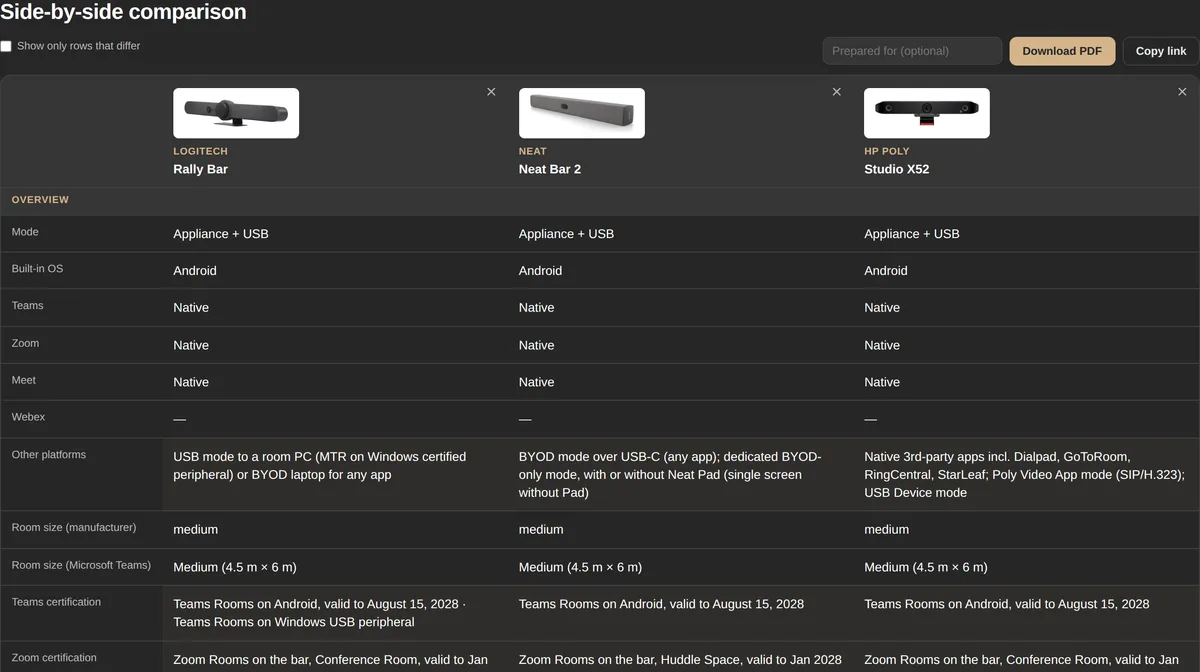
Microsoft and Zoom don’t always agree with each other either. Microsoft certifies the Neat Bar 2 for a medium room; Zoom lists it as a huddle space. The tool shows the manufacturer’s rating, Microsoft’s and Zoom’s side by side, and the room-size filter has a Rated by: Maker / Microsoft switch so you can filter on whichever you trust.
3. Built-in computer, or plug into a PC
Video bars come in two flavours, and many do both:
- Built-in computer (appliance): the bar runs Teams Rooms on Android, Zoom Rooms or Cisco RoomOS itself. One device, less to manage, usually the lower total cost. 28 of the bars in the tool work this way.
- Plugs into a PC (USB): the bar is a camera, microphone and speaker, and a Windows Teams Rooms compute, a Zoom Rooms PC or a laptop runs the meeting. 57 bars support this, including 21 that do both.
For small and medium rooms, an appliance is usually the cleaner choice. Teams Rooms on Windows still gets new features first and handles complex rooms better, which I covered in detail in the MTR compute refresh guide. If you already have a Windows compute in the room, the MTR Compute Checker will tell you whether it’s worth keeping.
4. Room to grow
A bar that fits the room today can be the wrong bar after the next reconfiguration. In the tool’s Features filter, check for:
- Expansion microphones for longer tables
- Second camera support for wide rooms or a presenter position
- Two display outputs if you want content and people on separate screens
- HDMI input for wired content sharing
- Power over Ethernet if you want a single cable to the bar
5. Price, last
Video bars in the tool run from a few hundred dollars to over $12,000 for a full kit. Price should narrow the shortlist, not start it: an under-specified bar that frustrates every meeting is the most expensive option in the room. The prices in the tool are approximate US list or street prices and vary by reseller and region, so treat them as a guide rather than a quote.
How to use the tool
- Set the room size in the sidebar, and switch Rated by to Microsoft if you want Microsoft’s certified rating instead of the manufacturer’s.
- Tick your platform under Certified for. Teams and Zoom come from the official lists.
- Choose a setup: built-in computer, plugs into a PC, or both.
- Narrow it down with price, brand and features. Every option shows how many bars it leaves, so you never filter yourself into an empty page.
- Open any card for the full spec sheet, every source link and the one-page data sheet PDF.
- Tick Compare on up to four bars to see them side by side. “Show only rows that differ” cuts the table down to what actually separates them.
- Download the comparison as a PDF, with an optional “Prepared for” name, or copy a link that reopens the same comparison. On a phone you can share the PDF straight from the share sheet.
Where the data comes from
A comparison tool is only as good as its data, so here’s exactly how it’s built:
- Specifications come from each manufacturer’s datasheets and product pages. Every bar links to its sources.
- Teams and Zoom certification is read directly from Microsoft’s Teams Rooms certified-device lists and Zoom’s Spaces Certified Hardware list, including room ratings and certification end dates.
- Prices are manufacturer list prices where published and typical US reseller prices otherwise.
- Anything not confirmed from an official source is marked with a ⚠ rather than quietly filled in. Most of those are minor fields such as release year or street price.
I’m brand-agnostic and no manufacturer has paid for a listing. If you spot something wrong or out of date, tell me and I’ll fix it.
When a video bar isn’t enough
Video bars are the right answer for most huddle, small and medium rooms. They stop being the right answer when the room is deeper than about 8.5 m, divisible, used for presentations as well as meetings, or a boardroom where everyone needs to be heard equally from both ends of the table. That’s when a separate camera, ceiling or table microphones and a proper DSP earn their cost. If you’re not sure which side of that line a room is on, that’s exactly the kind of call I make in AV system design.
Bottom line
Pick the platform first and check the bar is genuinely certified for it. Size by room depth, not seats, and take the manufacturer’s room label with a pinch of salt. Decide whether you want a built-in computer, leave room to grow, and only then let price decide between what’s left.
The best video bar is the one that suits your room and your platform, not the one with the biggest numbers on the box.
Try it on your next room
The Video Bar Comparison is free, needs no sign-up, and takes about two minutes to get from 65 bars to a shortlist.
Want a second opinion before you buy? Send me your rooms, platform and timing. You’ll get a shortlist and the trade-offs that matter, with no vendor quota behind it.